How To Choose The Best 4k Capture Cards For Fourth
If you're planning to stream or record competitive gameplay in 4K, your capture card is the backbone of your entire content rig. As we head into July 4th, 2026, the hardware landscape has fully shifted toward HDMI 2.1 and high-framerate pass-through, meaning the bar for zero-latency console and dual-PC streaming has been raised. Choosing the right card isn't just about resolution anymore; it's about ensuring your FPS doesn't tank, your monitor's refresh rate isn't bottlenecked, and your streaming microphone and webcam stay perfectly synced to buttery-smooth, high-bitrate footage.
Quick Answer
To choose the best 4K capture card, look for native HDMI 2.1 support to handle 4K at 120Hz or higher pass-through without chroma subsampling, and verify it supports high-bitrate recording (at least 200 Mbps) to prevent muddy artifacting in fast-paced FPS games. You must decide between an internal PCIe card for maximum visual fidelity and an external USB-C enclosure for console flexibility. Avoid anything advertising "4K60 record" if it relies on heavy hardware compression that ruins HUD text and crosshair clarity.
Table of Contents
HDMI 2.1 and High-Framerate Pass-Through
The biggest mistake you can make in 2026 is buying a 4K60 capture card if you actually play on a 144Hz or 240Hz gaming monitor. A capture card sits physically between your console or gaming PC and your gaming monitor. If you play competitive titles like Valorant or Counter-Strike 2 at 4K 144Hz, but your capture card only supports a 4K60 pass-through, your expensive monitor will be bottlenecked down to 60Hz. That extra input lag will instantly ruin your aim.
You need a card that features full HDMI 2.1 bandwidth (48Gbps). This allows you to play your game at 4K 120Hz or 144Hz with full RGB color completely unaffected, while the card simultaneously sends a 4K60 signal to your streaming PC. Don't compromise on the pass-through refresh rate, or you'll end up unpluging the card entirely just to play ranked.
Internal PCIe vs. External USB Capture Setups
Your first major decision is whether to go with an internal PCIe card or an external USB capture card. Internal cards slot directly into your streaming PC's motherboard and connect straight to the PCIe bus. Because of this direct connection, they offer massive data pipelines that external USB 3.0 or USB-C connections simply cannot match. If you are a dual-PC streamer chasing the absolute highest visual fidelity for your channel, a PCIe card is the undisputed king. They run cooler, have massive heatsinks, and can handle uncompressed 4K video without dropping frames.
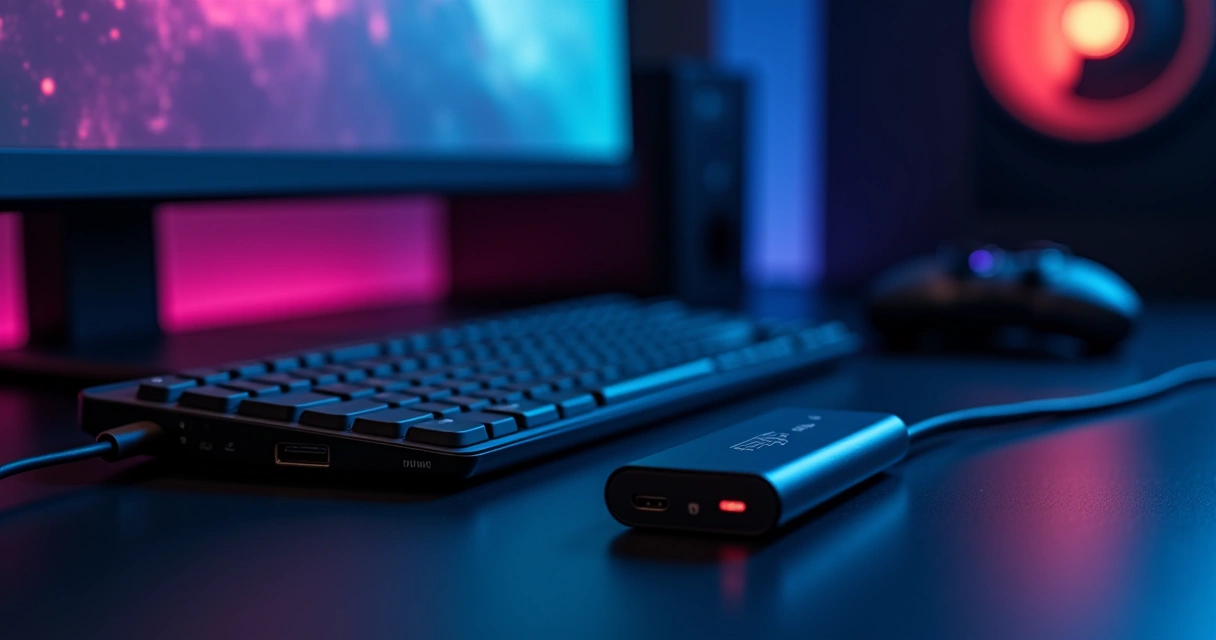
External cards, on the other hand, are all about versatility. If you are a console player transitioning your setup from the living room to your gaming desk, or if you travel to offline tournaments, an external USB-C card lets you capture gameplay on a high-end gaming laptop. The trade-off is that you are bound by the compression limits of USB, and you need to ensure your desk setup has the proper cable management to hide the extra HDMI runs.
Color Sampling and Bitrate: Why Stream Quality Matters
When looking at capture card specs, you’ll see numbers like "4:4:4" and "4:2:0" along with terms like "Maximum Bitrate." Chroma subsampling dictates how much color data is thrown away during the capture process. For fast-moving MMO raids or dense battle royale maps where explosions and neon RGB lighting are going off constantly, capturing in highly compressed formats creates pixelated artifacts around your character and makes your stream look amateur.
Look for capture cards that allow for high-bitrate recording—ideally 200 Mbps or higher for 4K60 footage. Even if you stream at 6000 to 10000 kbps for your viewers, recording at a high bitrate gives you pristine master files for YouTube uploads or competitive VOD reviews. Without high bitrate, tracking a tiny enemy model through dense foliage in a competitive FPS becomes a muddy, artifacted mess on your final render.
Zero-Lag Pass-Through for Competitive Gaming
Let's talk about input lag. In a competitive environment, every millisecond of delay between your gaming mouse click and the action on your monitor matters. A good capture card acts like a ghost on your network—your gaming PC or console shouldn't even know it's there. The signal passing through the card to your gaming monitor must be strictly a hardware passthrough, adding exactly zero milliseconds of latency.
The capture processing only happens on the stream PC side. Be incredibly wary of budget capture cards that claim to process and pass the signal simultaneously on the same machine using software loops. If your gaming PC is handling both the rendering and the encoding via a cheap external card, you are stealing vital CPU cycles and GPU overhead, which ruins your game's framerate and introduces peripheral stuttering. Keep the gaming rig isolated and the encoding on the stream rig.
Integrating Your Capture Card Into a High-End Stream Setup
A capture card doesn't work in a vacuum; it has to integrate seamlessly with the rest of your gear. If you are running a dual-PC setup, your streaming PC needs to be powerful enough to encode that 4K signal. While modern capture cards handle the video input beautifully, your streaming PC's processor (or a dedicated NVENC encoder on an older GPU) is what actually compresses the video for Twitch or YouTube.
Think about your physical desk arrangement. Running an HDMI cable from your gaming PC's GPU, into an external capture card, and back to your gaming monitor requires serious gaming desk real estate and elite PC cable management. If your gaming headset and streaming microphone share an audio interface, you'll need to route your game audio carefully through Voicemeeter or GoXLR to ensure the capture card gets the game sound without echoing your Discord voice comms back into the stream.
Frequently Asked Questions
Do I really need a 4K capture card if I only stream at 1080p?
Yes, for the pass-through alone. Even if your Twitch stream is 1080p60, a 4K/HDMI 2.1 capture card ensures you can play your games on a 4K 120Hz or 144Hz monitor without being bottlenecked to lower refresh rates by inferior hardware.
Does a capture card cause input lag for the person playing the game?
No, not if you buy one with true hardware pass-through. A proper setup splits the signal, sending an uncompressed, zero-latency feed to your gaming monitor while sending a secondary, delayed feed to your streaming PC for the viewers.
Can I use an external capture card on a gaming laptop?
Absolutely. External USB-C capture cards are perfect for laptop streamers. Just make sure your laptop has a robust CPU or GPU to handle the encoding process so you don't drop frames during intense gaming sessions.
Why does my 4K capture card make my game look blurry?
You are likely experiencing heavy chroma subsampling (4:2:0) or have a low bitrate setting in your recording software. Ensure your card is receiving an uncompressed signal and that your recording bitrate is set to at least 100-200 Mbps in OBS Studio.
Will a capture card lower my game's FPS?
It shouldn't. As long as you use a dual-PC setup or capture directly from a console, the gaming hardware is completely isolated from the encoding process. Single-PC setups can occasionally see FPS drops if the CPU is overworked by software encoding.
Choosing the right 4K capture card is all about balancing high-framerate pass-through capabilities with the connection type that fits your rig, ensuring your competitive performance never takes a hit while you broadcast. Take a close look at your current gaming monitor's refresh rate and your desk's cable management constraints before deciding between an internal PCIe powerhouse or an external USB-C solution. Once you've secured the right card, it's time to dial in your streaming microphone audio and webcam lighting so your viewers get the flawless, high-bitrate experience they deserve.